




Cumu riparà l'errore 9 di l'iPhone chì ùn hà pussutu esse restauratu?

Restaurà un iPhone via iTunes o Finder hè di solitu un prucessu simplice. Tuttavia, parechji utilizatori scontranu u messagiu "L'iPhone ùn hà pussutu esse restauratu. Si hè verificatu un errore scunnisciutu (9)" durante una restaurazione o un aghjurnamentu. Questu errore pò interrompe u prucessu di restaurazione, lascià u dispusitivu bluccatu in modalità di ripresa è impedisce à l'utilizatori di accede nurmalmente à u so iPhone.
L'errore 9 di l'iPhone hè unu di l'errori di restaurazione più cumuni signalati da l'utilizatori Apple. Mentre pò esse frustrante, a bona nutizia hè chì hè spessu riparabile cù uni pochi di passi di risoluzione di i prublemi. In questa guida, spiegheremu ciò chì significa l'errore 9 di l'iPhone, perchè si verifica è i metudi più efficaci per risolve lu.
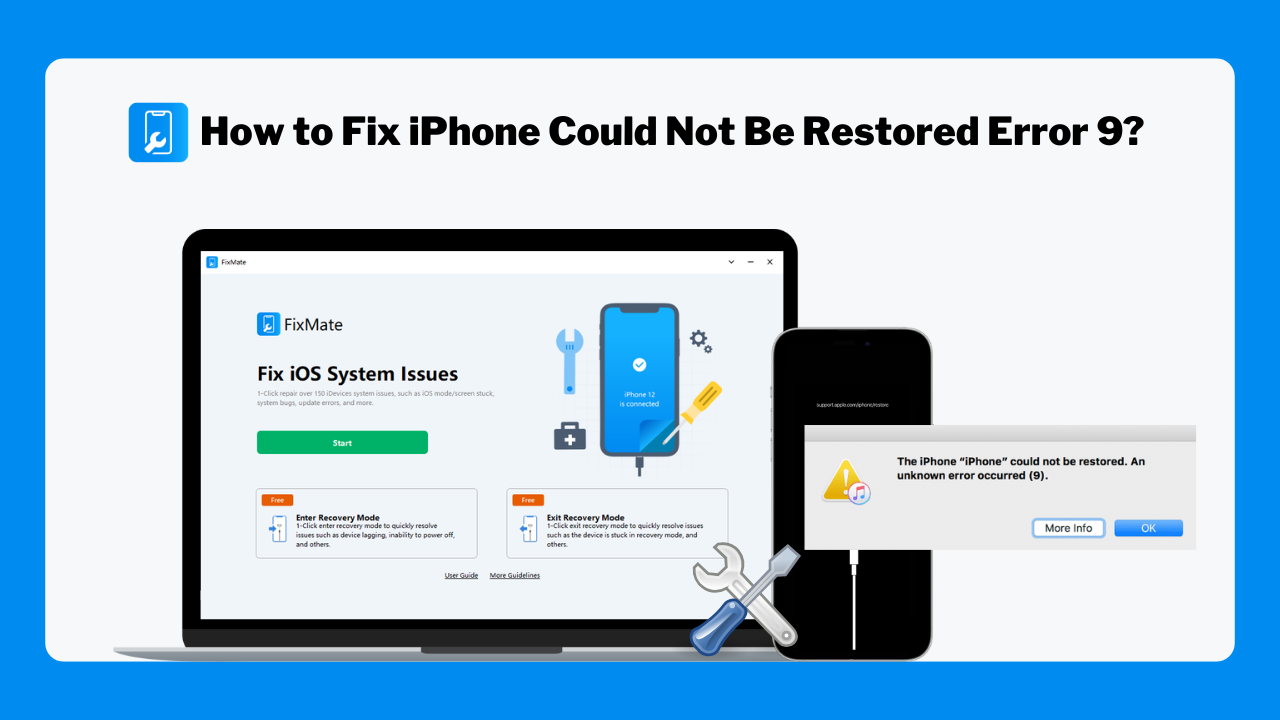
1. Chì significa l'errore 9 di l'iPhone?
L'errore 9 di l'iPhone hè un errore di restaurazione o d'aghjurnamentu chì si verifica quandu a cumunicazione trà u vostru iPhone è l'urdinatore hè interrotta durante u prucessu. Quandu questu accade, iTunes o Finder ùn ponu micca cumpletà a restaurazione, risultendu in u messagiu:
"L'iPhone ùn hà pussutu esse restauratu. S'hè verificatu un errore scunnisciutu (9)."
In più di i prublemi di cunnessione, l'Errore 9 pò qualchì volta esse causatu da a corruzzione di iOS o da prublemi ligati à l'hardware, lascendu u dispusitivu bluccatu in Modalità di Recuperazione, nantu à un schermu neru, o intrappulatu in un ciclu di riavviu.
2. Perchè l'iPhone ùn hà pussutu esse restauratu si verifica l'errore 9?
Parechji fattori ponu scatenà l'errore 9 durante una restaurazione di l'iPhone. E cause cumuni includenu:
- Cavu USB difettuosu o dannighjatu
- Cunnessione USB libera
- Versione obsoleta di iTunes o macOS
- Prublemi di portu USB
- Software di sicurezza chì interferisce cù u prucessu di restaurazione
- Firmware iOS curruttu
- Aghjurnamenti di software interrotti
- Problemi di sistema nantu à l'iPhone
- Prublemi ligati à l'hardware (cum'è connettori dannighjati o cumpunenti di a scheda logica)
Identificà a causa principale pò aiutà à determinà a suluzione più efficace.
3. Cumu riparà l'errore 9 di l'iPhone chì ùn hà pussutu esse restauratu?
Quì sottu sò parechji metudi pruvati per risolve l'errore 9 di l'iPhone.
Correzione 1: Verificate u cavu USB è a cunnessione
Una cunnessione difettosa o instabile trà u vostru iPhone è l'urdinatore pò pruvucà l'Errore 9. Assicuratevi di utilizà un cavu Apple originale, verificate s'ellu ci hè qualchì dannu à u cavu, cunnettevi direttamente à l'urdinatore invece di un hub USB, è pruvate una porta USB diversa se necessariu. Dopu avè ricunnessu u vostru dispositivu, pruvate torna a restaurazione.
Correzione 2: Aggiorna iTunes o macOS
Una versione obsoleta di iTunes o Finder pò causà prublemi di cumpatibilità durante u restauramentu.
Per Windows:
- Apri iTunes > Clicca Aiutu > Verificate l'aghjurnamenti > Installa qualsiasi aghjurnamenti dispunibili.
Per Mac:
- Apertu Impostazioni di u sistema > Andà à Generale > Aghjurnamentu di u Software > Installate l'ultimi aghjurnamenti di macOS.
Una volta aghjurnatu, ricunnette u vostru iPhone è pruvate à restaurallu di novu.
Fix 3: Riavviate sia l'iPhone sia l'urdinatore
I prublemi tempuranei ponu qualchì volta causà l'Errore 9. Basta à riavvià u vostru iPhone è l'urdinatore, poi ricunnette u dispusitivu è pruvà torna a restaurazione.
Fix 4: Disattivà u Software di Sicurezza Temporaneamente
I prugrammi antivirus, i firewall è l'applicazioni di sicurezza ponu interrompe à volte u prucessu di restaurazione.
Per verificà se u software di sicurezza hè a causa di l'errore 9:
- Disattivate temporaneamente u vostru antivirus o firewall.
- Aprite iTunes o Finder, dopu pruvate torna à ripristinare.
Sè a restaurazione riesce, cunsiderate l'aghjunghje di iTunes o Finder à a lista d'eccezzioni di u vostru software di sicurezza prima di riattivà a prutezzione.
Correzione 5: Mettite l'iPhone in Modalità di Recuperazione
Sè una restaurazione nurmale ùn funziona micca, pudete aduprà a Modalità di Recuperazione per reinstallà iOS.
Una volta in Modu di Recuperazione, cunnette u vostru iPhone à u vostru urdinatore è apre iTunes o Finder. Quandu hè dumandatu, selezziunate Actualizazione per reinstallà iOS senza sguassà i dati. Sè l'aghjurnamentu fiasca, sceglite Risturà per fà una restaurazione cumpleta di u dispusitivu.
Correzione 6: Aduprà u Restauramentu in Modu DFU
A modalità d'aghjurnamentu di u firmware di u dispositivu (DFU) esegue una restaurazione più prufonda chè a modalità di ripresa è pò aiutà à riparà a corruzzione severa di u software.
Per aduprà a modalità DFU:
- Cunnette u vostru iPhone à l'urdinatore.
- Entre in u modu DFU secondu u mudellu di u vostru dispositivu.
- Aprite iTunes o Finder, è restaurate u dispusitivu quandu vi sarà dumandatu.
Tenite in mente chì i restaurazioni DFU sguassanu tutti i dati di u dispusitivu, dunque questu metudu deve esse generalmente adupratu dopu chì altre suluzioni anu fiascatu.
Correzione 7: Pruvate un altru urdinatore
L'errore 9 pò esse causatu da prublemi di software o di driver nant'à u vostru urdinatore. Pruvate à restaurà u vostru iPhone nant'à un altru PC, Mac, o contu utilizatore per determinà s'ellu u prublema hè ligatu à l'urdinatore.
Correzione 8: Verificate i prublemi di hardware
Sè l'Errore 9 persiste dopu à tutte e correzioni di u software, u prublema pò esse ligatu à l'hardware, cum'è un portu di carica dannighjatu, danni d'acqua o un guastu di cumpunenti interni. Cunsiderate di fà inspeccionà u vostru iPhone da Apple o da un tecnicu di riparazione qualificatu.
4. Bonus: Riparà l'errori di u sistema iPhone cù AimerLab FixMate
Sè l'errore 9 hè causatu da a curruzzione di iOS o da prublemi à livellu di sistema, a risoluzione manuale di i prublemi pò piglià assai tempu è ùn pò micca sempre riesce. Una suluzione più simplice hè di utilizà AimerLab FixMate , un strumentu prufessiunale di riparazione di u sistema iOS cuncipitu per risolve una larga gamma di prublemi di iPhone è iPad.
Caratteristiche principali di AimerLab FixMate:
- Risolve più di 200 prublemi di sistema iOS è iPadOS
- Risolve i cicli di avvio, i schermi neri, i schermi congelati è i falli di l'aghjurnamentu
- Esce è entra in Modu di Recuperazione cù un clic
- Supporta l'ultime versioni di iOS è i dispusitivi Apple
Cumu riparà l'errore 9 cù AimerLab FixMate:
- Scaricate è installate AimerLab FixMate nant'à u vostru Windows.
- Lanciate u software è cunnette u vostru iPhone, cliccate "Start" è sceglite Riparazione Standard.
- Scaricate u pacchettu di firmware cunsigliatu, dopu cunfirmate per inizià u prucessu di riparazione.
- Aspettate chì a riparazione sia cumpletata è lasciate chì u dispusitivu si riavvii.
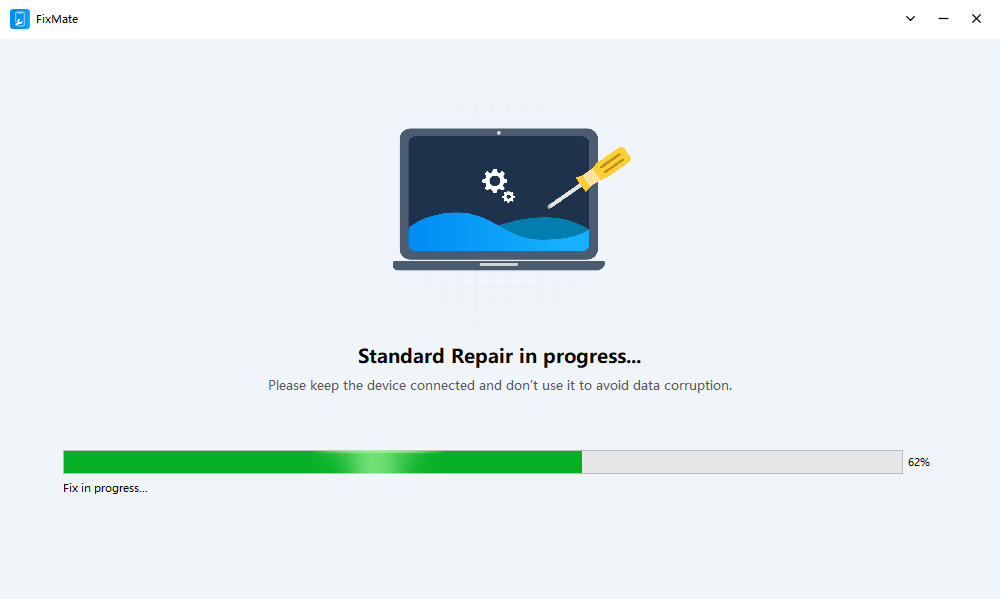
Una volta finitu, parechje cause di l'Errore 9 ligate à u software ponu esse eliminate senza bisognu di un reset di fabbrica o di un restauru DFU.
5. Cunclusioni
U missaghju "L'iPhone ùn hà pussutu esse restauratu. Si hè verificatu un errore scunnisciutu (9)" hè generalmente causatu da fallimenti di cumunicazione trà l'iPhone è l'urdinatore, corruzzione di u software, o qualchì volta difetti hardware. Fortunatamente, parechji casi ponu esse risolti verificendu a cunnessione USB, aghjurnendu iTunes o macOS, aduprendu a Modalità di Recuperazione, eseguendu una restaurazione DFU, o pruvendu un urdinatore diversu.
Quandu l'errore 9 hè causatu da prublemi di sistema iOS più prufondi, i metudi manuali ùn ponu micca sempre funziunà. In tali casi,
AimerLab FixMate
furnisce una suluzione più rapida è più affidabile. Cù a so capacità di riparà numerosi errori di u sistema iOS senza perdita di dati, FixMate hè una scelta eccellente per l'utilizatori chì cercanu di risolve l'errore 9 di l'iPhone è di restaurà i so dispositivi à u funziunamentu nurmale cù un sforzu minimu.
- Cumu riparà iOS 26 chì ci vole una eternità per scaricà?
- Cumu vede i lochi frequenti nantu à l'iPhone?
- Perchè iOS 26 hè cusì lentu?
- Cumu riparà "Ci hè statu un errore di verificazione di u codice d'accessu di u vostru iPhone"?
- Cumu riparà "Finisce nantu à u novu iPhone" bluccatu?
- Cumu scaricà iOS 27 Beta nant'à iPhone?
- Cumu Spoof Pokemon Go nantu à iPhone?
- Panoramica di Aimerlab MobiGo GPS Location Spoofer
- Cumu cambià u locu in u vostru iPhone?
- Top 5 falsi falsi spoofers di posizione GPS per iOS
- Definizione GPS Location Finder è suggerimentu Spoofer
- Cumu cambià a vostra posizione nantu à Snapchat
- Cumu truvà / Share / Hide Location in i dispositi iOS?